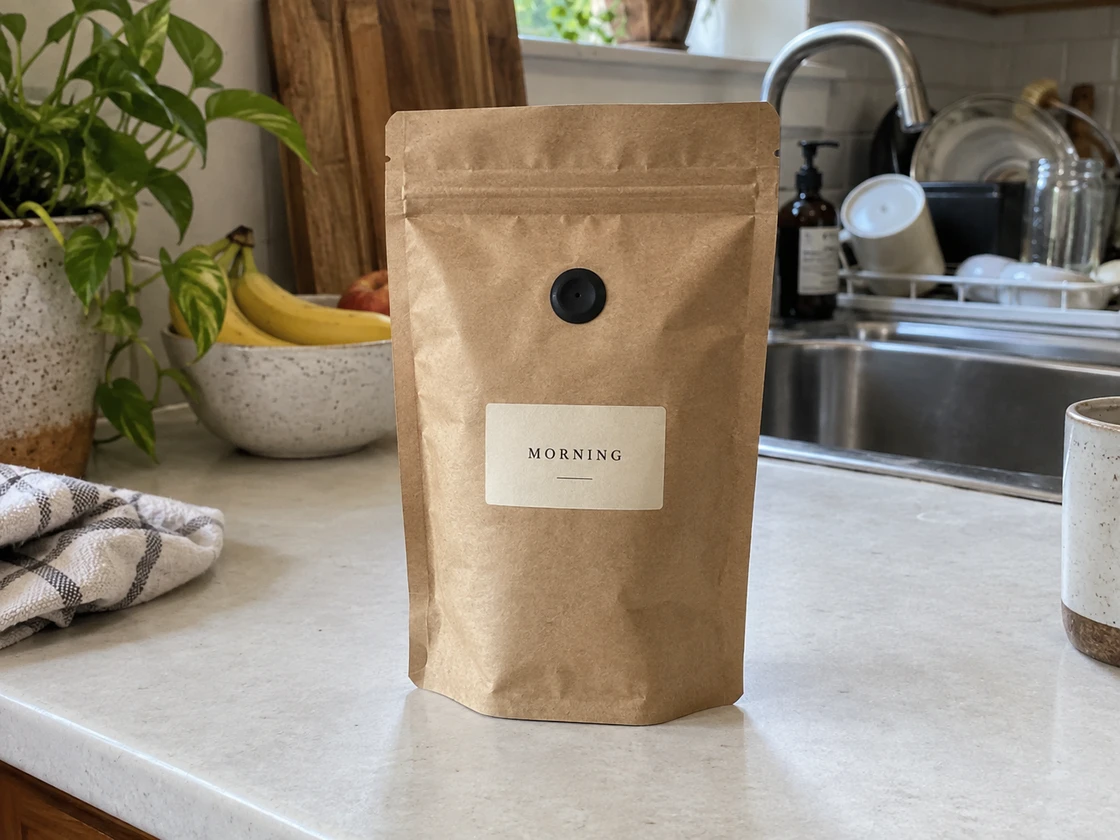
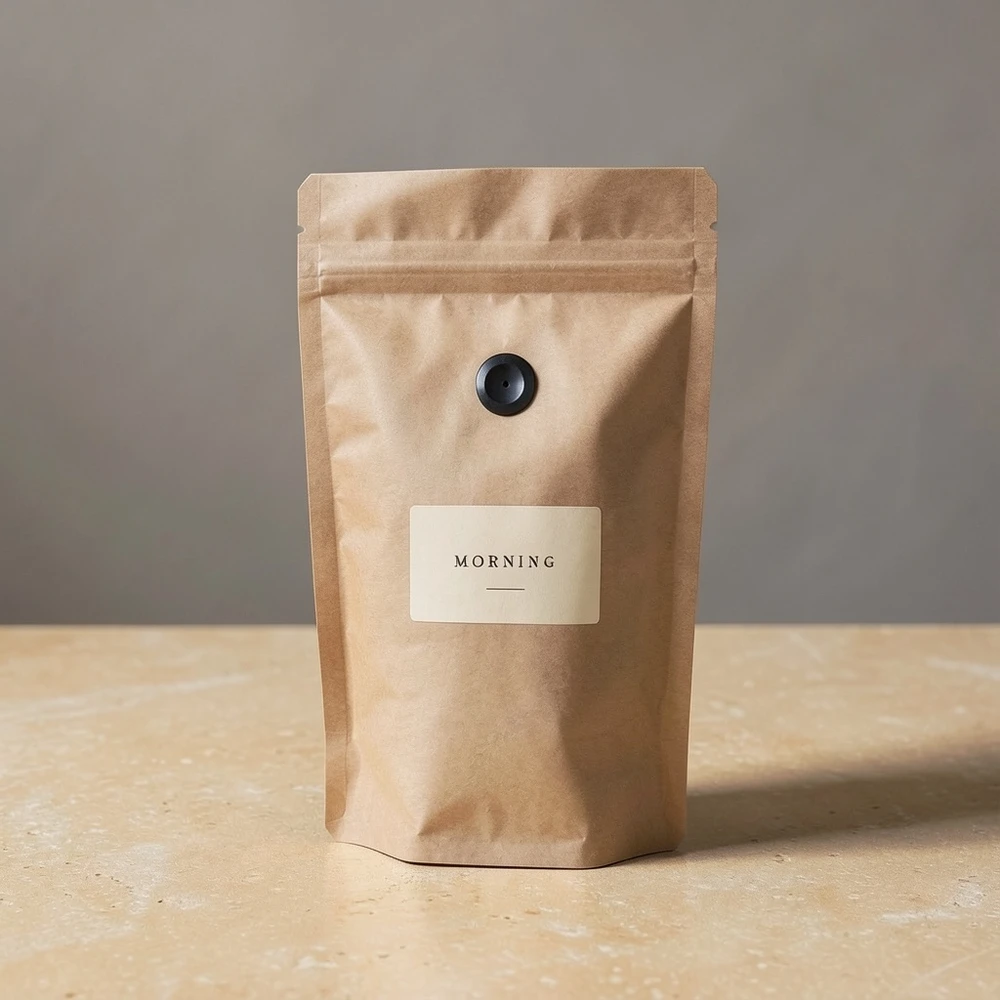
A new setting for your product.
Give a product a new setting. Describe the surface, background and shadow together.

Upload a photo. Describe what you want to change. Preview your edit before you download.
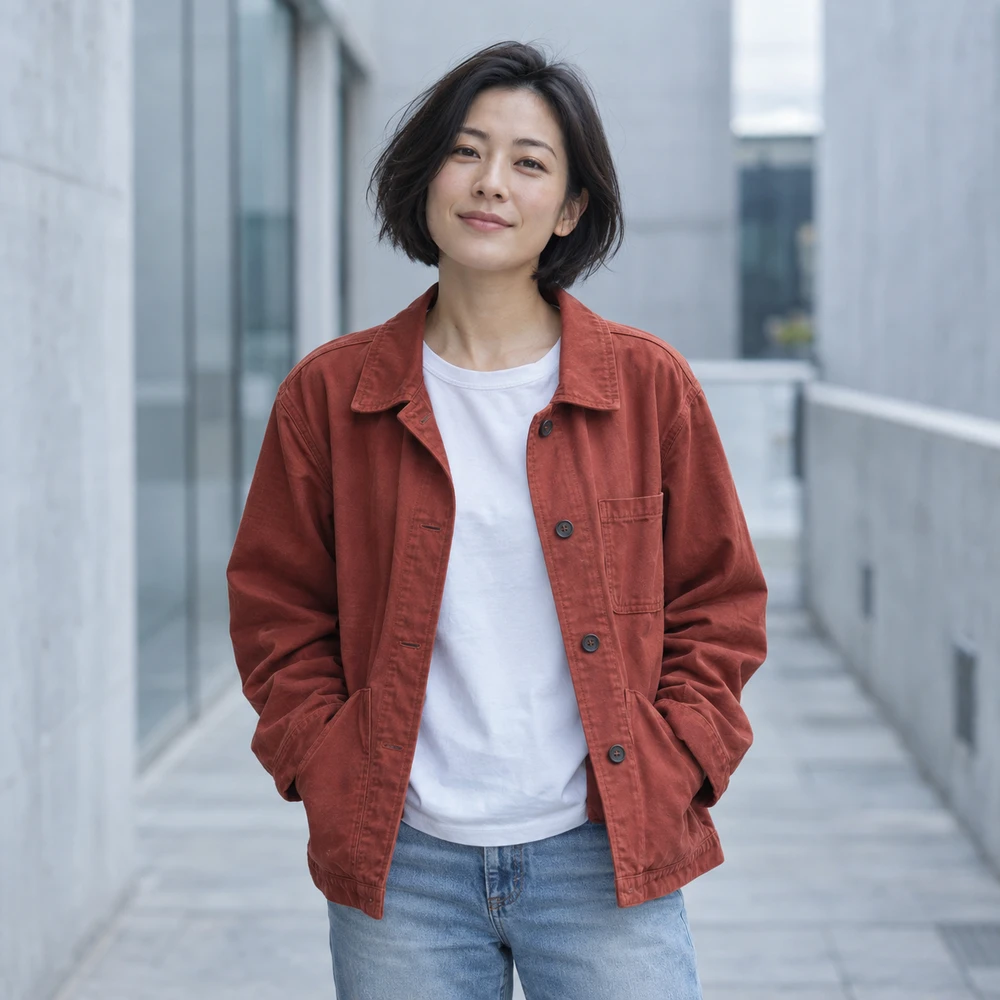
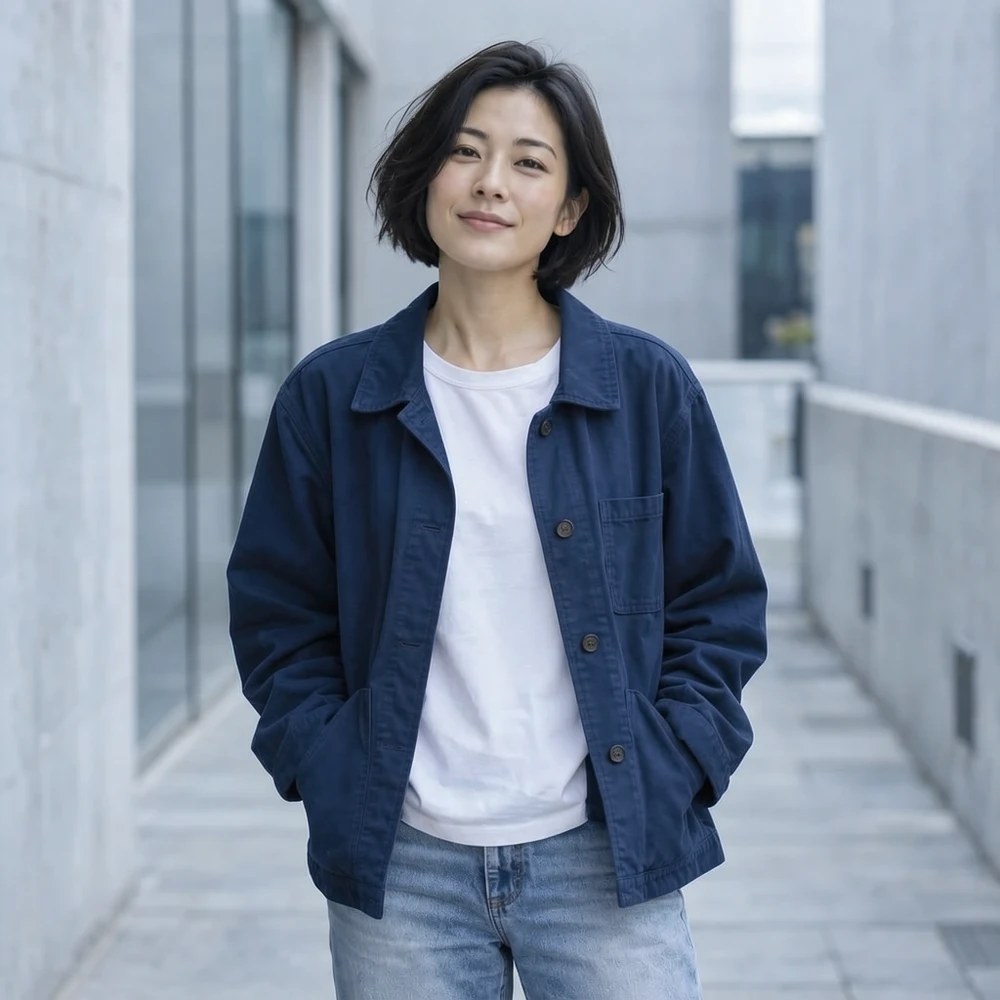
Tell AI what to change and what you would like to keep.
Choose PNG, JPG or WebP when you download.
Start with one clear change. Name the subject, describe the new appearance, and mention the parts you want to keep. AI can reinterpret areas beyond your instruction, so compare the result with your original.
Give a product a new setting. Describe the surface, background and shadow together.
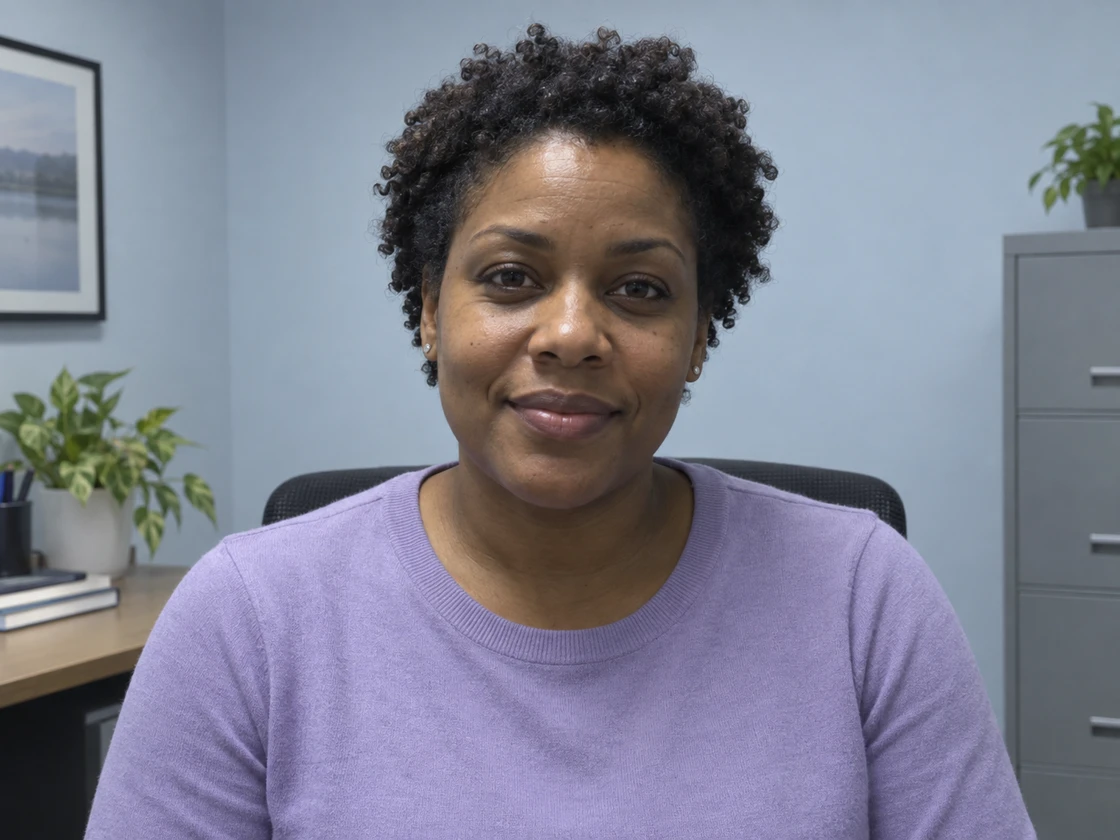
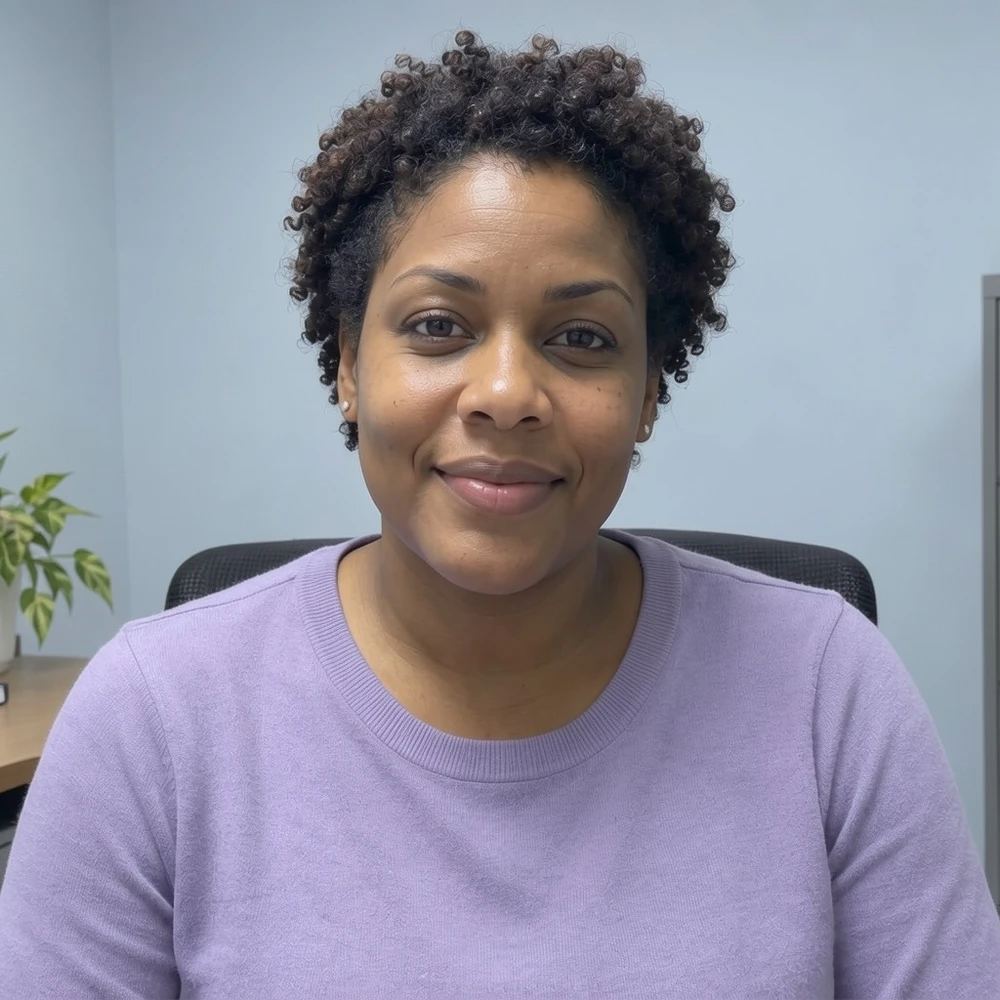
Change the light around a face. Compare the expression and fine features as well as the mood.
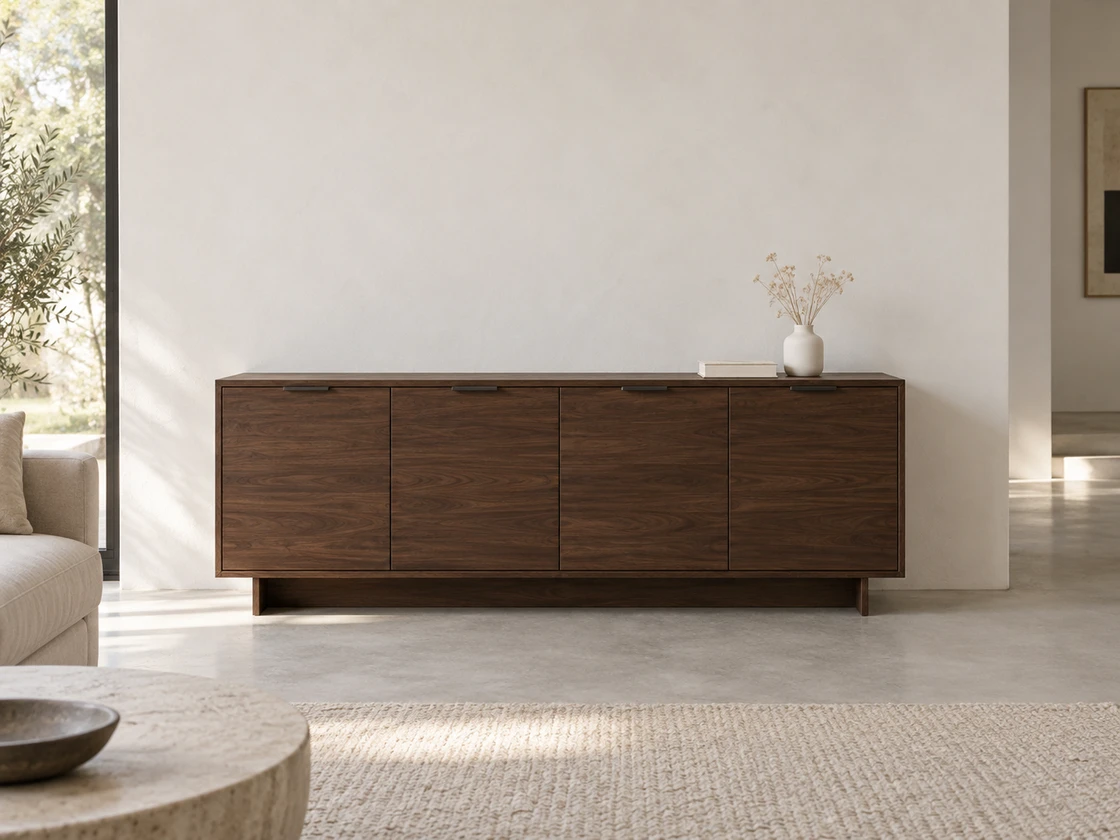
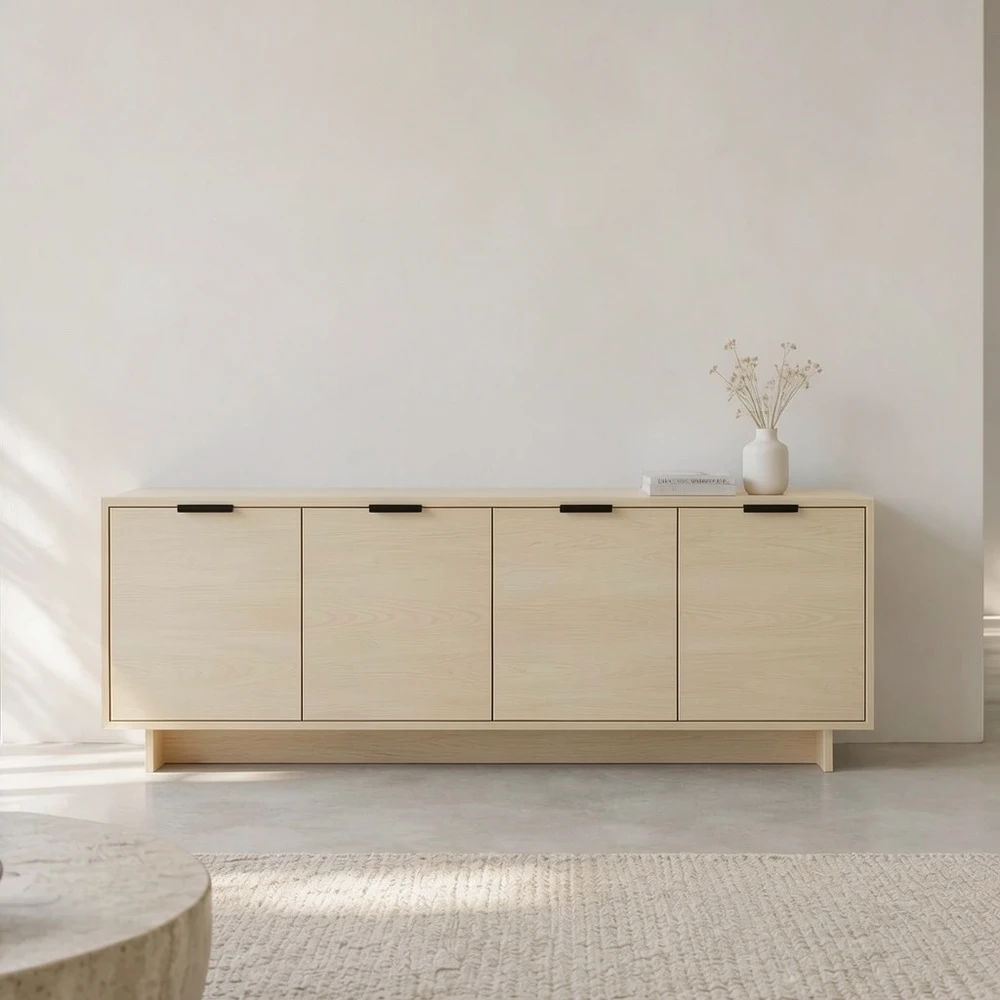
Explore a new finish in your own space. Start with one piece of furniture or a single surface.
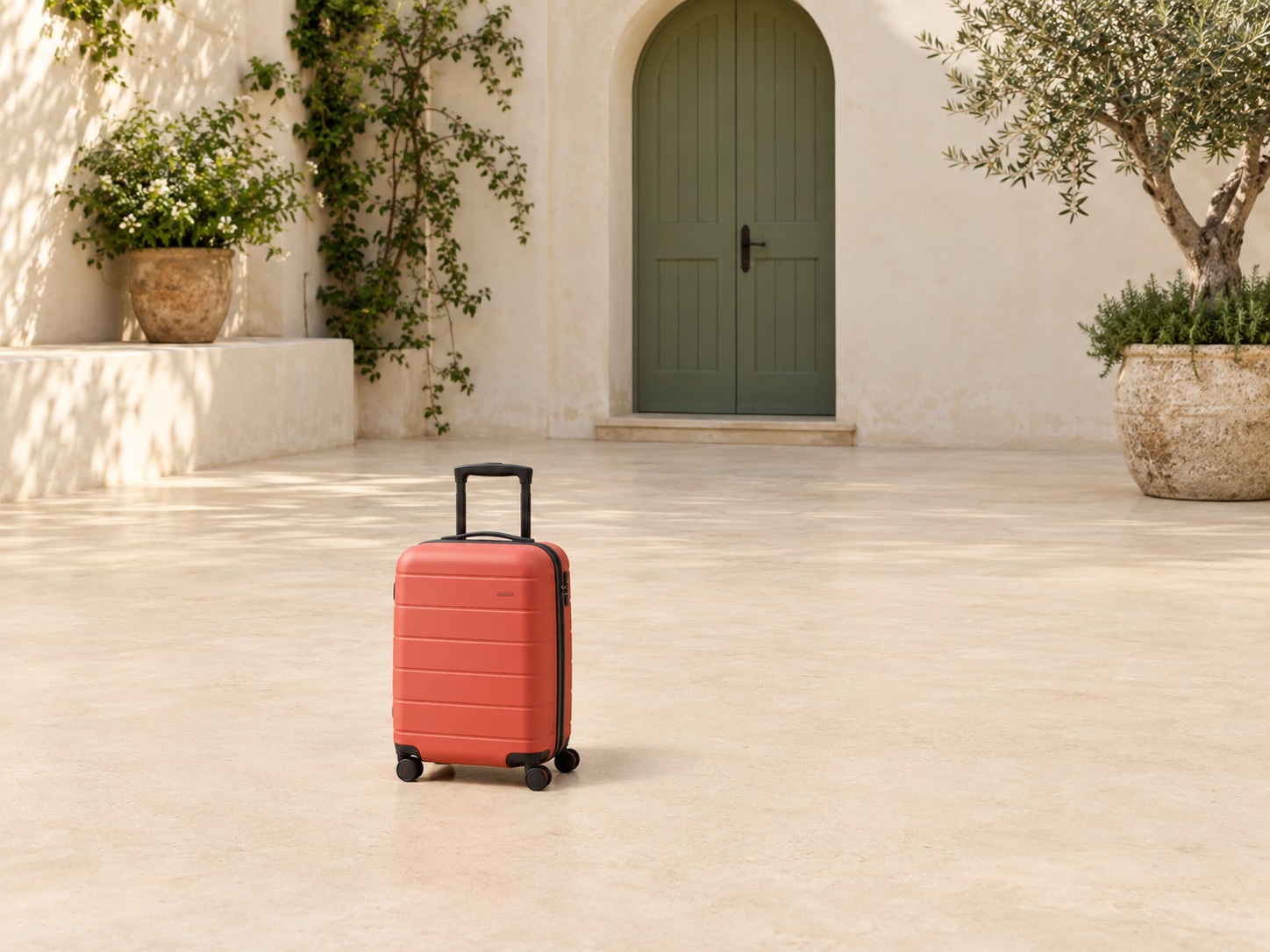
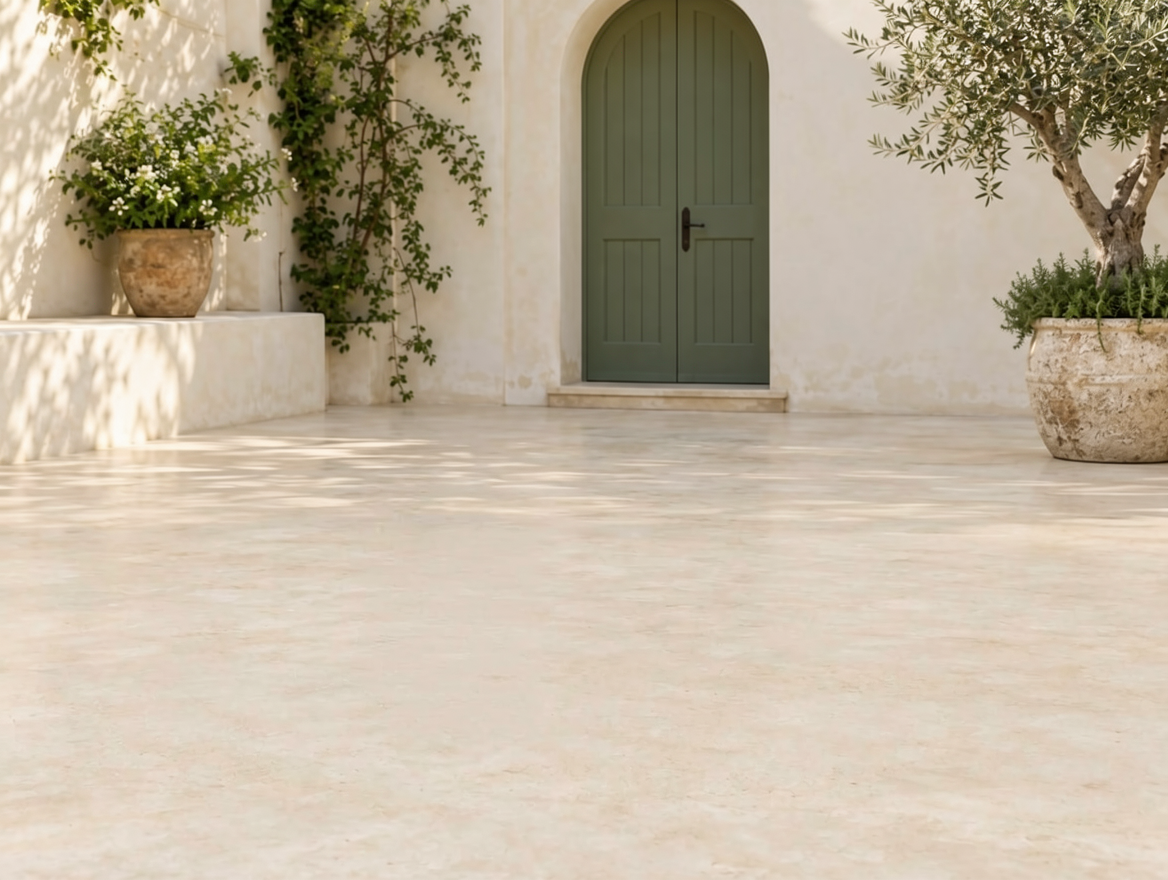
Remove a suitcase with a written instruction. Compare the floor and surrounding scene before using the result.
Example inputs and actual edited results.
Choose a JPG, PNG or WebP image up to 5 MB and 25 MP. A clear source makes the requested change easier to describe.
Write what you want to add, replace or adjust. Mention what you want to keep, then choose Edit image. Credits are checked before submission.
Review the result alongside your original. Check faces, text and object edges, then download in PNG, JPG or WebP.
Results, prompts, free credits and files.
An AI image editor uses an existing image and a text instruction to generate an edited version. Pimg lets you upload a photo, describe a change and compare the output before downloading.
You can request changes to colors, clothing, objects, lighting or the surrounding scene. These are generative edits, so the model may also reinterpret details you did not mention.
Name the item, describe the desired change and say what should stay. For instance: change the jacket to navy blue, keep the pose and background. Start with one clear request.
Exact preservation is not guaranteed. Faces, text, textures and unmentioned areas can change. Inspect the preview and avoid relying on an edit as a faithful record of the original.
Compare the result with your original: check the requested change, faces and text, then edges, lighting and shadows. Choose JPG or WebP for sharing, or PNG to avoid another lossy export. Changing the download format does not restore details altered by AI.
Free allowances depend on your region and account status. In supported regions, eligible guests can try basic edits with a trial allowance. In supported countries, signing in unlocks daily free credits for eligible tools, resetting at midnight America/New_York. In other regions or for higher volume tasks, purchased credits are available. The workspace displays your live balance and exact credit price before submission.
Upload JPG, PNG or WebP files up to 5 MB and 25 MP. The tool accepts one source image per request. You can download completed edits as PNG, JPG or WebP. Edited outputs are square, approximately 1 MP; original dimensions are not preserved.
This page uses a text prompt and one source image. It does not provide selection masks, separate layers or manual retouching controls. Use Object Remover when you need to paint over an object to remove it.
Use AI Image Editor to describe a specific change. Image to Image is organized around broader style and scene transformations. Both use a reference image and a prompt, and neither guarantees unchanged areas.
The page displays the failure and lets you try again. Credit reservations and task charges follow the existing failure-handling rules; check the displayed balance before submitting another request.
 Image EnhancerImprove clarity at the current image size after checking that the visual change is the one you want.
 Image UpscalerIncrease image dimensions by 2× or 4× when the finished edit is too small for your next use.
 Object RemoverPaint over an unwanted item when a visual selection is more useful than describing it in a prompt.
Start with your original and one clear instruction.