Characters with a story
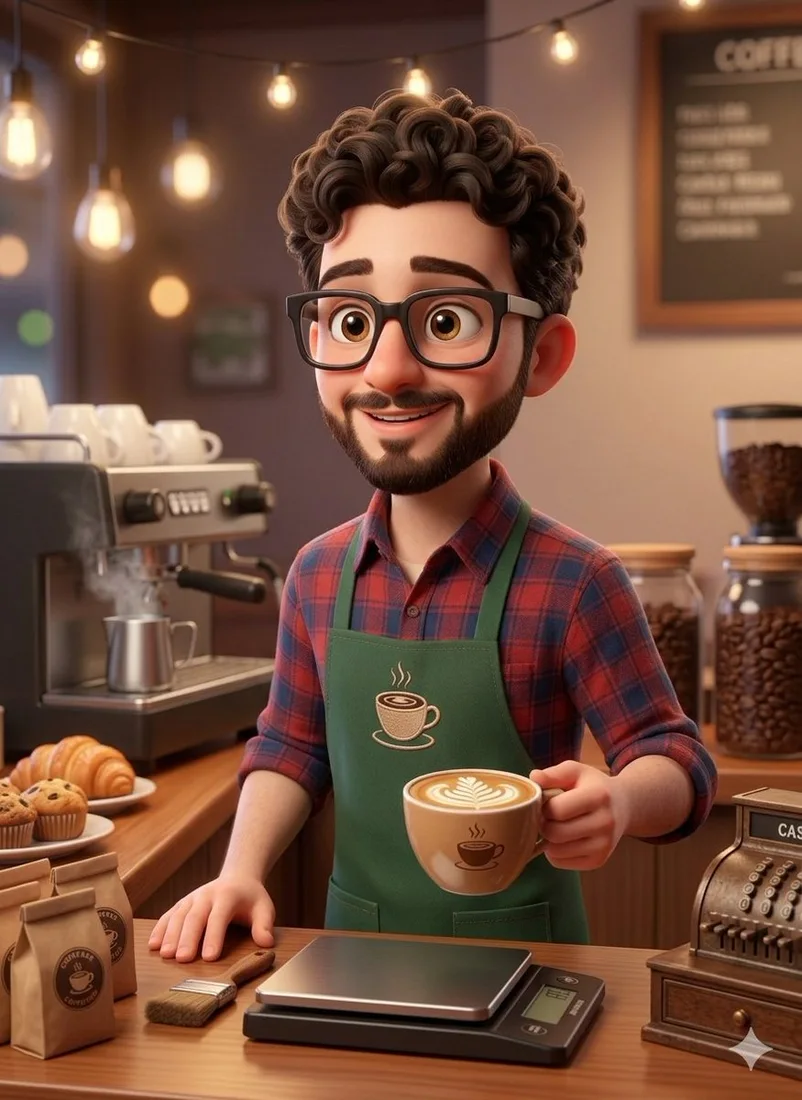
“A friendly young barista with curly brown hair, glasses and a green apron serving coffee in a cozy cafe. Expressive stylized 3D character, warm pendant lights, polished wood counter and inviting atmosphere.”

Turn your words into an image. Describe a subject, choose a mood and create something new—no photo upload needed.
Write a prompt, then generate your image.
One image per prompt · PNG, JPG or WebP download.
Explore a visual direction, read the prompt and make it your own.
“A friendly young barista with curly brown hair, glasses and a green apron serving coffee in a cozy cafe. Expressive stylized 3D character, warm pendant lights, polished wood counter and inviting atmosphere.”
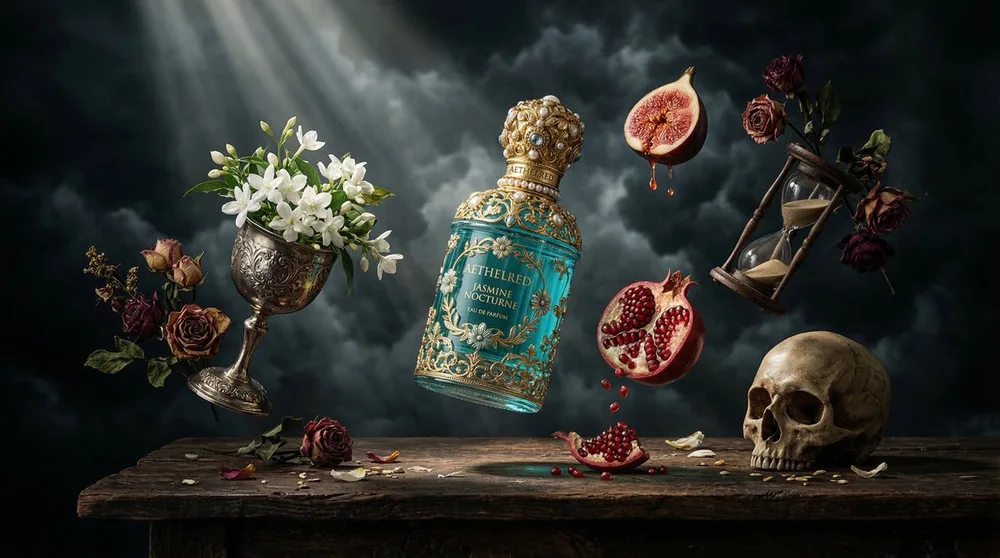
“A turquoise perfume bottle with an ornate gold cap floating above a rustic wooden table. Flowers, sliced fruit and antique objects suspended around it. Dark atmospheric backdrop, shafts of soft daylight and rich still-life photography.”
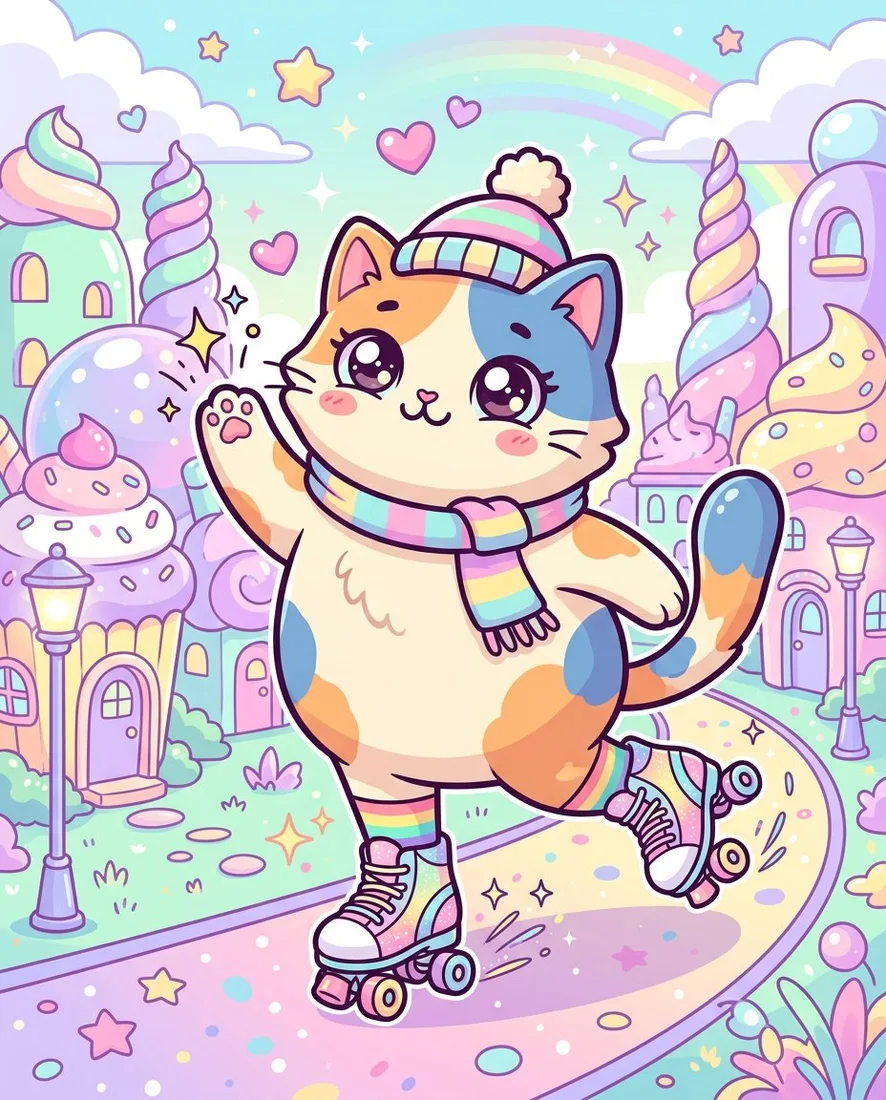
“A cheerful orange kitten wearing roller skates and a rainbow scarf in a whimsical candy-colored town. Playful kawaii illustration, clean outlines, pastel pink and lilac buildings, tiny stars and a rainbow in the sky.”
AI-generated images with their starting prompts. Your result will vary.
Write what you want to see: a subject, an action or setting, and a visual style. Start from a gallery prompt or your own sentence. Text to Image creates a new image without requiring an uploaded photo.
Select Generate image. The workspace checks your eligible free allowance or purchased Credits before submitting the task. Keep the page open to follow its progress; starting a new generation is a separate action.
Inspect the result, especially faces, hands, lettering and important details. Download it as PNG, JPG or WebP. Change a specific part of your prompt when you want to try another direction; a new prompt creates a new result.
Prompts, results, free credits and files.
An AI image generator creates a new image from a written description. Your text can describe a subject, setting, composition, colors and a style such as photography or illustration. Pimg's Text to Image workspace uses that description as its starting point. You do not need an existing photograph or drawing.
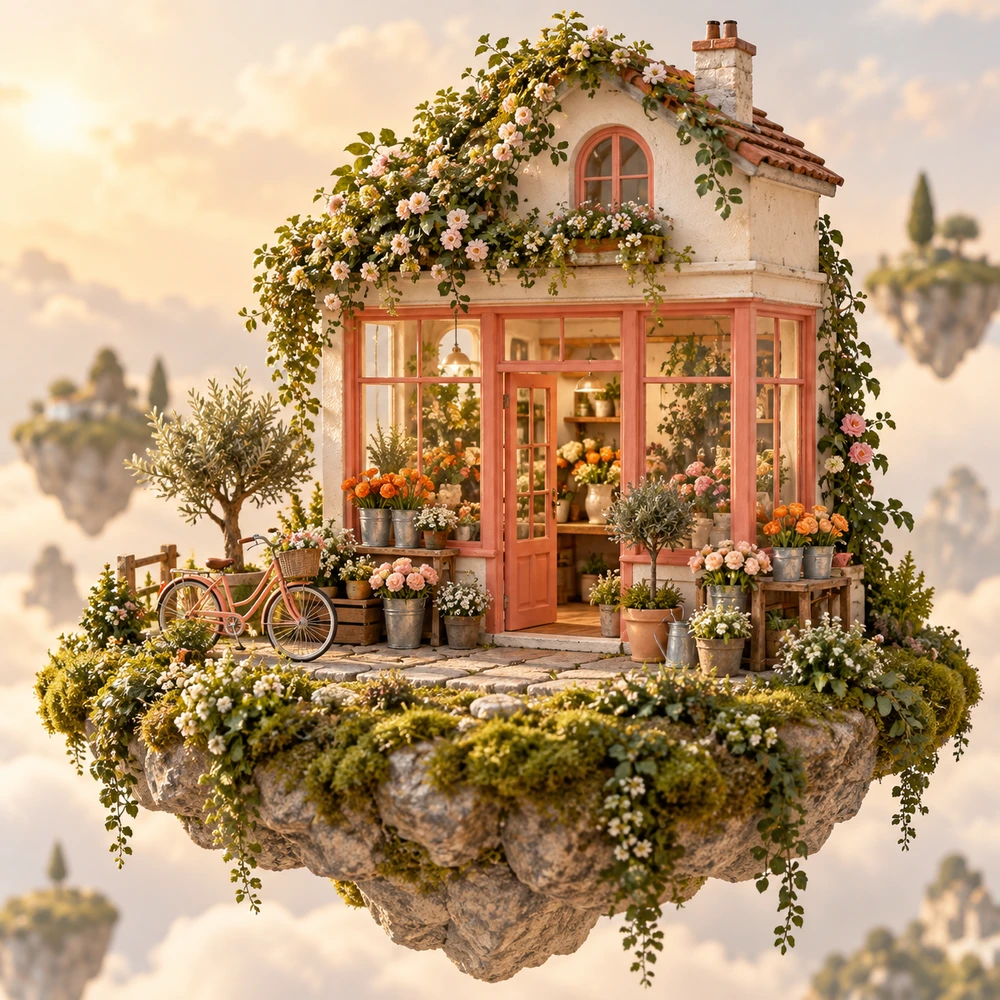
Start with the main subject, then add its surroundings and the visual treatment. For instance: a small bookshop on a floating island, watercolor illustration, soft morning light. Add details that matter to your idea rather than a long list of unrelated adjectives. If the result misses the point, revise one or two specific instructions before generating again.
Free allowances depend on your region and account status. In supported regions, eligible guests can generate images with a trial allowance. In supported countries, signing in unlocks daily free credits for eligible tools, resetting at midnight America/New_York. In other regions or for higher volume tasks, purchased credits are available. The workspace displays your live balance before processing.
You can describe photographic, illustrated, painted or stylized scenes in your prompt. Include the medium and visible details you care about, such as soft window light or bold ink outlines. The model interprets those words, so realism, style and small details can vary between results. Gallery images are visual inspiration rather than a promise to reproduce the same picture.
No. Text to Image starts with words. If you want a new image guided by an existing photograph, use Image to Image. If you want to change an item, color or setting in a photo, use AI Image Editor. Those workflows take an image as well as a written direction.
No. The gallery uses selected Soutine library artwork with text-only starting prompts adapted for this workspace. The current generator may use a different model, and each generation can interpret the same words differently. Use a prompt to explore its visual direction, then adjust it to fit your own idea.
You can request these details, but check the result carefully. Lettering can be misspelled, hands and faces can change, and a character may look different in a new generation. This workspace does not offer a character-lock or layered design workflow. Keep final typography and important brand details under your own review.
Choose PNG, JPG or WebP in the workspace. After processing, inspect the actual image dimensions shown with your result. Changing the download format does not increase its resolution. Use Image Upscaler if you need to make the completed image larger; this page does not promise that every output is 4K.
Read the displayed task status and error before starting another request. A lost submission response can be recovered with the same request instead of creating a duplicate generation. Failed tasks follow the existing credit-release rules. Check your task status and allowance, then revise the prompt or try again when the workspace is ready.
Start with a sentence. Give it a visual direction.