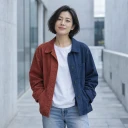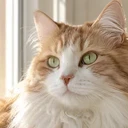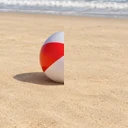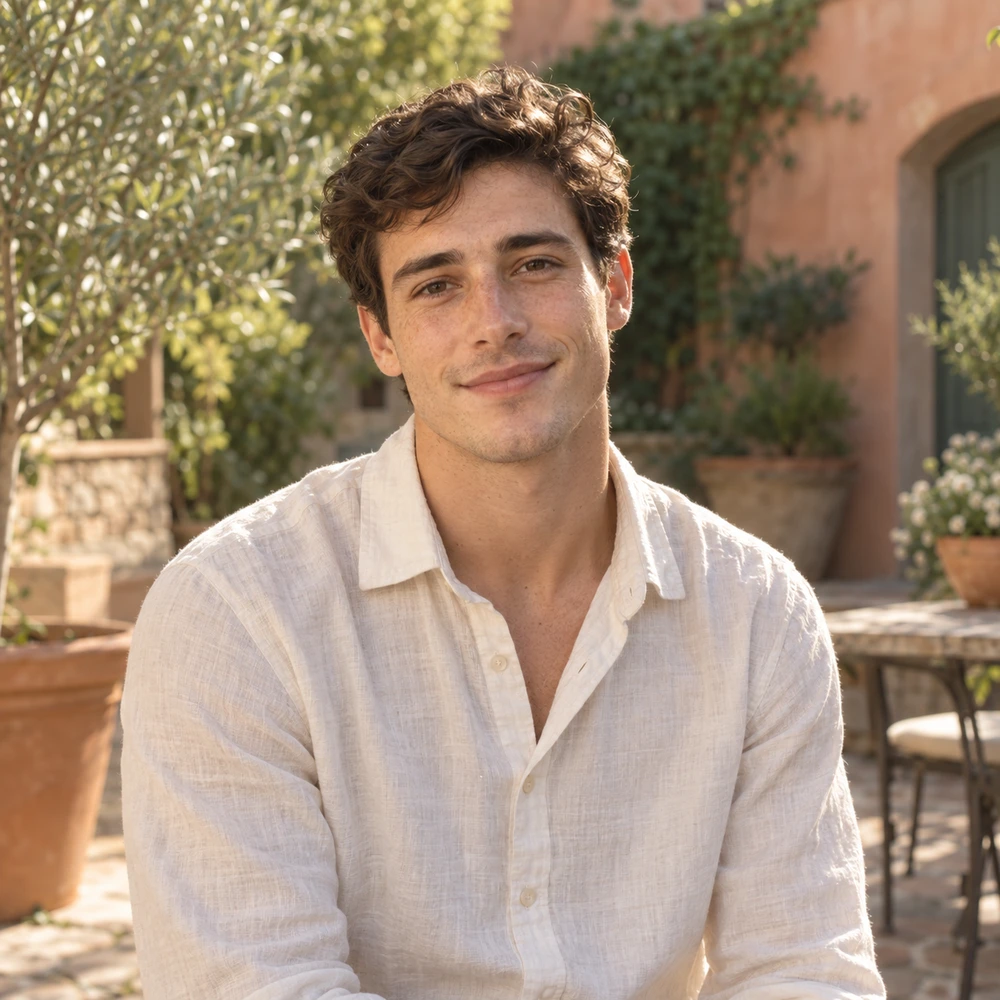
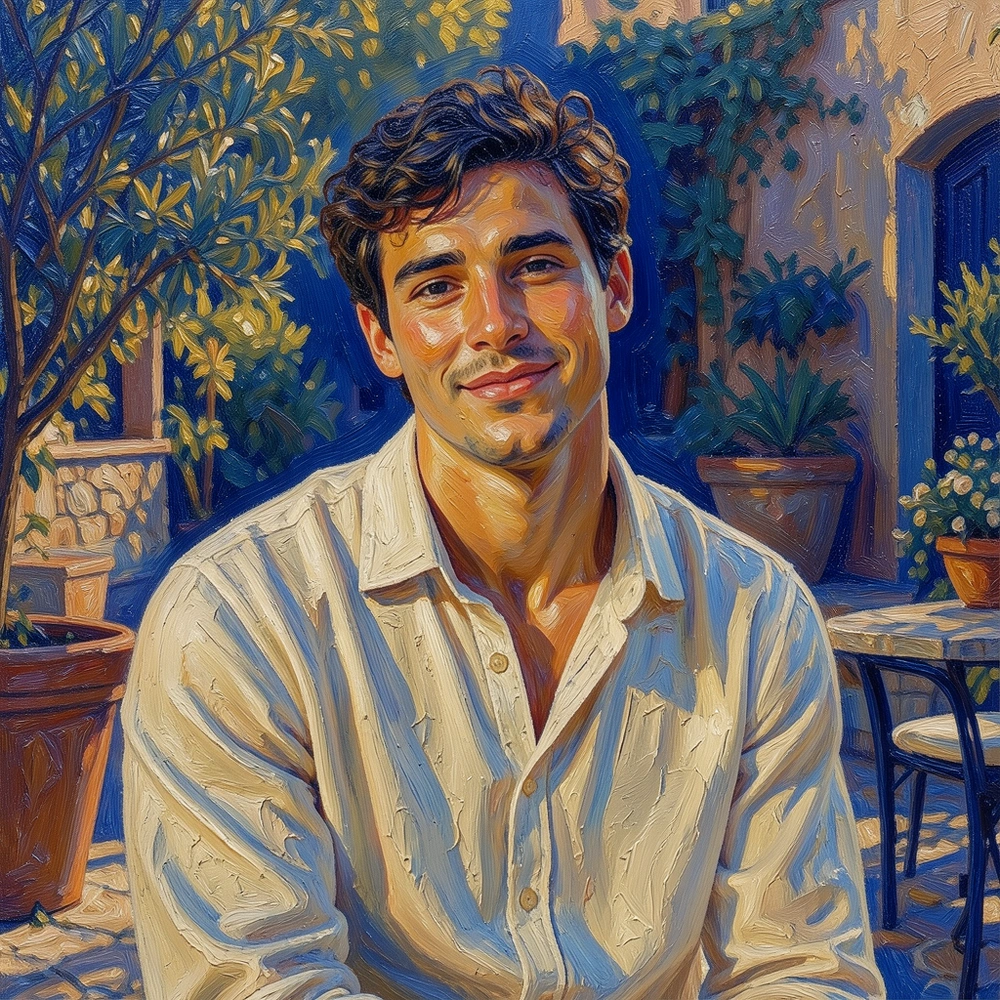
A photo becomes a painting.
One reference, one prompt: the same face and pose as a starting point, in textured oil paint.

Start with an image. Turn it into art, explore a new scene, or create a different visual direction with a prompt.
Your reference is the starting point. Your prompt describes the transformation.
Choose PNG, JPG or WebP when you download.
Describe how you want the image to feel, look or read. A reference can guide the composition and subject, but the output is a newly generated image; shapes, colors and details may shift.
One reference, one prompt: the same face and pose as a starting point, in textured oil paint.
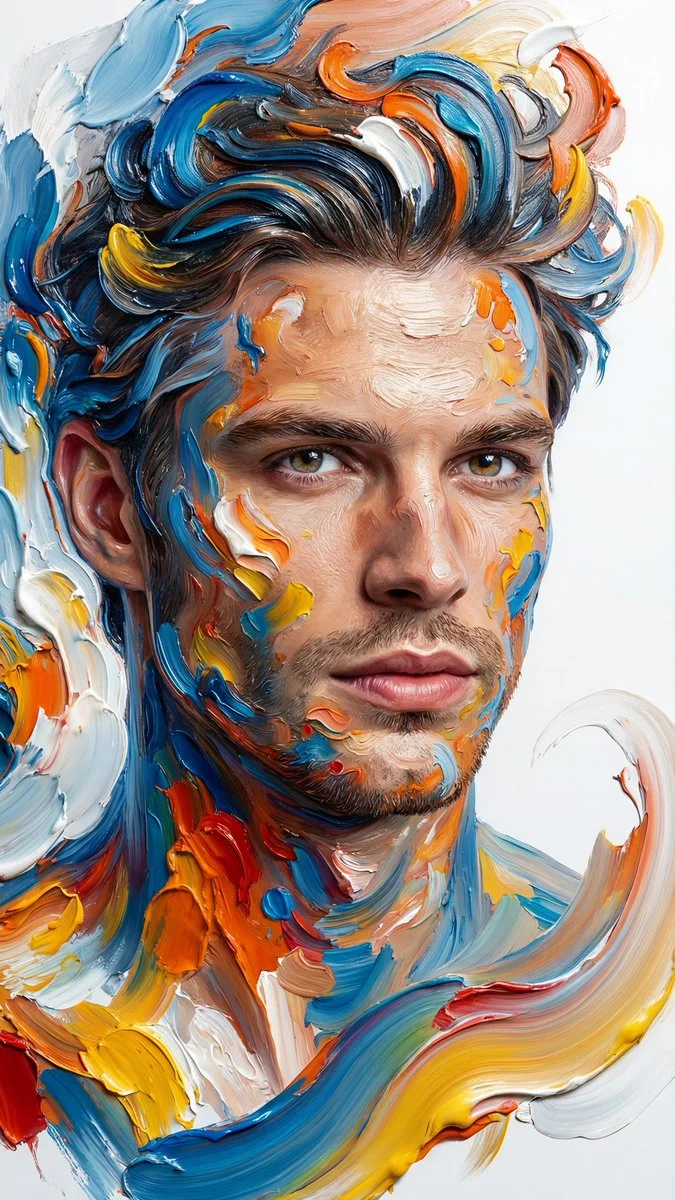
Explore paint, pencil or sculpted characters. Describe the medium and palette, then mention the features that make your subject recognizable.
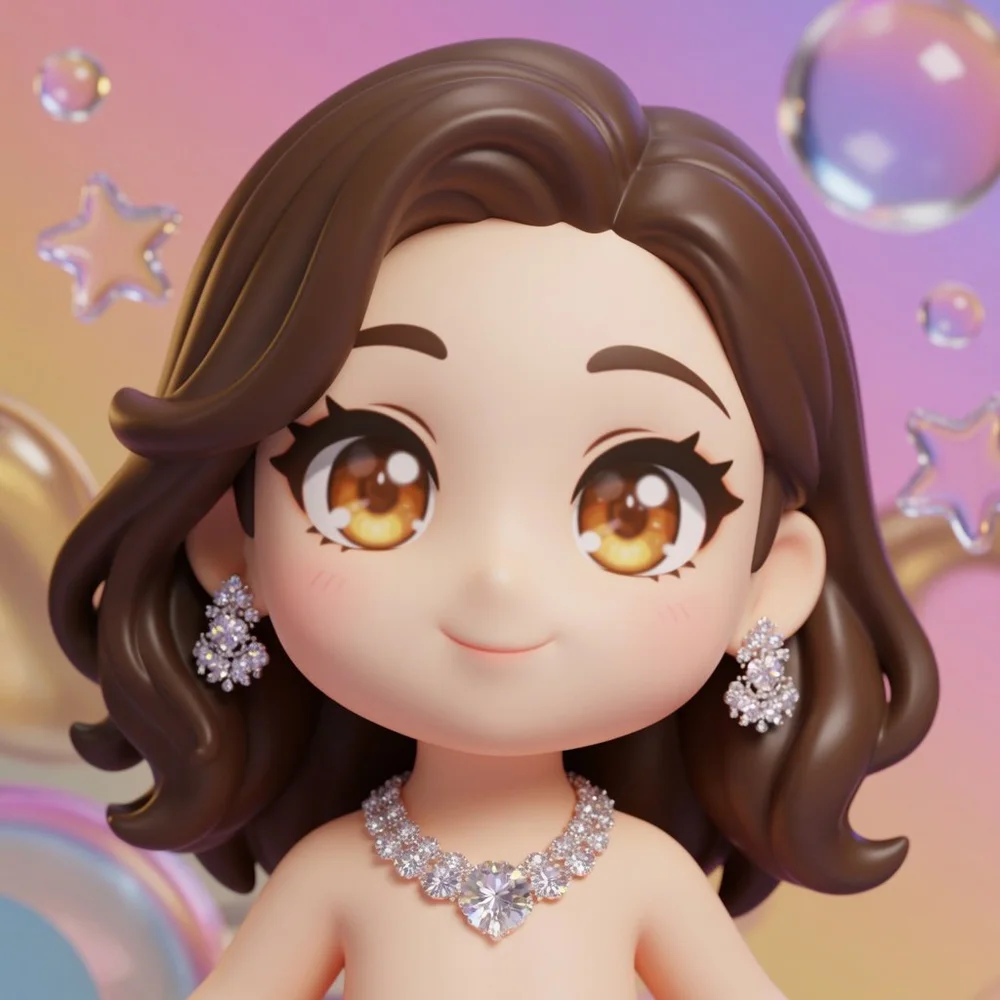
Explore a stylized avatar, a toy-like figure or an illustrated character from your own photo. Name the shape language, materials and expression you want.
An actual reference and result, plus generated style directions.
Upload a JPG, PNG or WebP up to 5 MB and 25 MP. Choose a reference with a clear subject and a composition you want to explore.
Name the style, scene or atmosphere you want. Mention important features of the reference and choose Transform image. Credits are checked before generation.
Compare the generated image with the source. Check the composition, faces and fine details, then download as PNG, JPG or WebP.
Results, references, free credits and files.
Image to image AI generates a new image from a reference image and a text prompt. The reference gives a starting point; your instruction describes the style, scene or atmosphere you want to explore.
Text to image starts from a written description without a source image. Image to image includes a visual reference, which can guide the subject and composition of the generated version.
You can ask for a watercolor, comic or other illustration direction. Describe the medium, texture and mood. The output is generative, so likeness and small details are not guaranteed.
No exact match is guaranteed. The model may change shapes, object placement, faces or background details. Include important features in the prompt and inspect the completed result.
Free credits are available only when you and the selected tool qualify. The workspace shows your available allowance and the credits required before submission. Eligible daily credits reset at midnight in America/New_York. Purchased Credits are available separately.
Use one JPG, PNG or WebP file up to 5 MB and 25 MP. A clear subject helps you describe the intended transformation. Downloads are available in PNG, JPG and WebP.
This page currently offers a source image and a text prompt. It does not expose transformation strength, negative prompts, multiple references or pose-control settings. State your intended changes in the main prompt.
Choose Image to Image for broader style or scene exploration. Choose AI Image Editor to describe a focused change to an existing photo. They share a generation workflow; exact preservation is not guaranteed by either tool.
Review what changed and make the next prompt more specific. A completed but unwanted result is different from a technical processing failure. Each new request uses its own credit allowance.
Start with a reference. Describe where you want to take it.