
For your next photo layout.
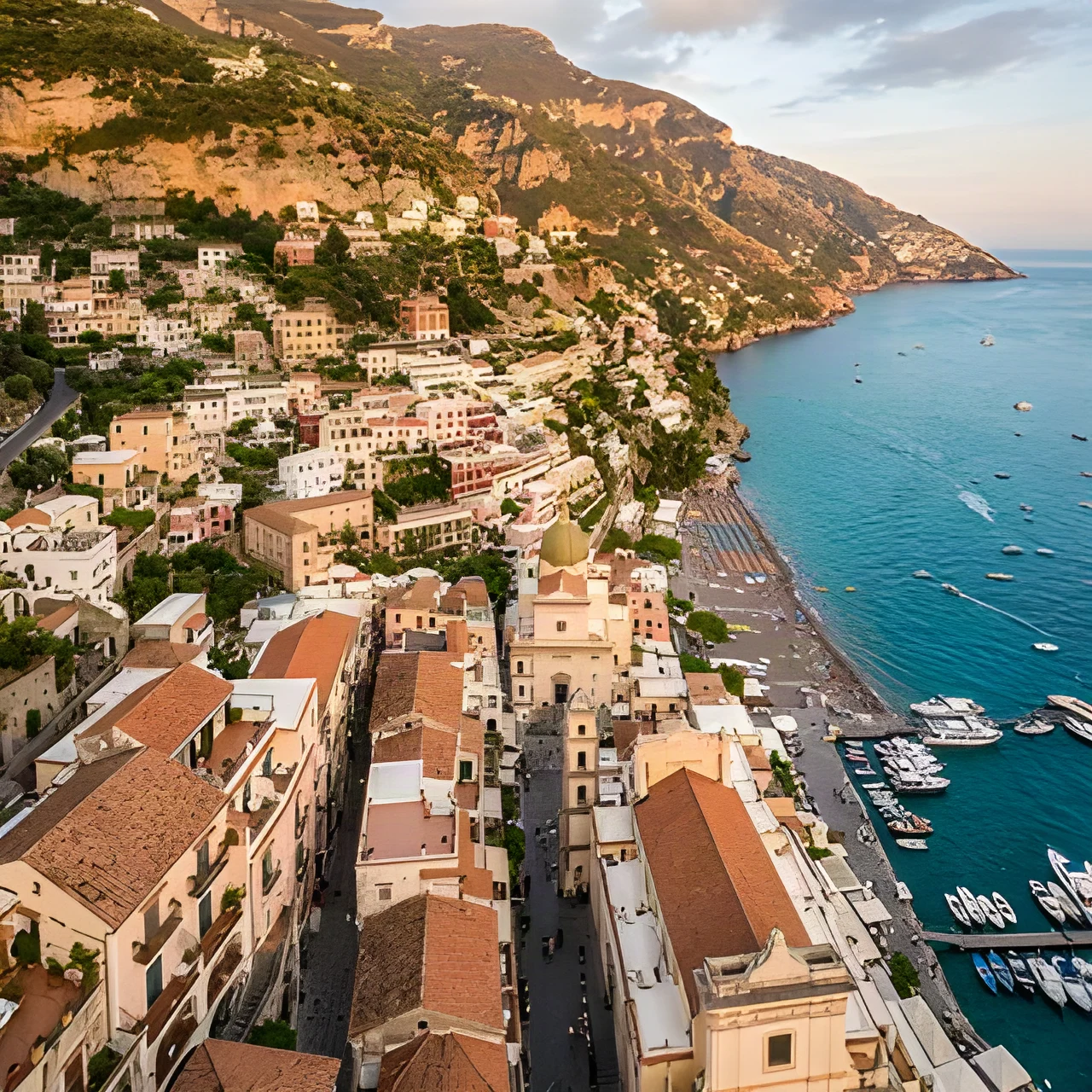
Enlarge a small photo for a presentation or a larger screen. Inspect rooftops, buildings and distant edges.

Enlarge small images by 2× or 4×. Inspect details up close, preview output dimensions, and download your image.


Increase the image dimensions by 2× or 4×.
Width and height grow by the same amount.
Choose PNG, JPG or WebP when you download.
Increase image resolution for your next use. Both width and height grow by the same amount.
More pixels. Finer details.
Follow the window frames and furniture edges in this real 4× result. Switch to Detail to compare the same area up close.
The living room reaches 4K-class dimensions. Your output size depends on your original.


Explore real results for different kinds of images.
Enlarge a small photo for a presentation or a larger screen. Inspect rooftops, buildings and distant edges.
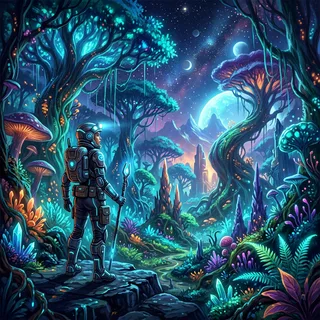
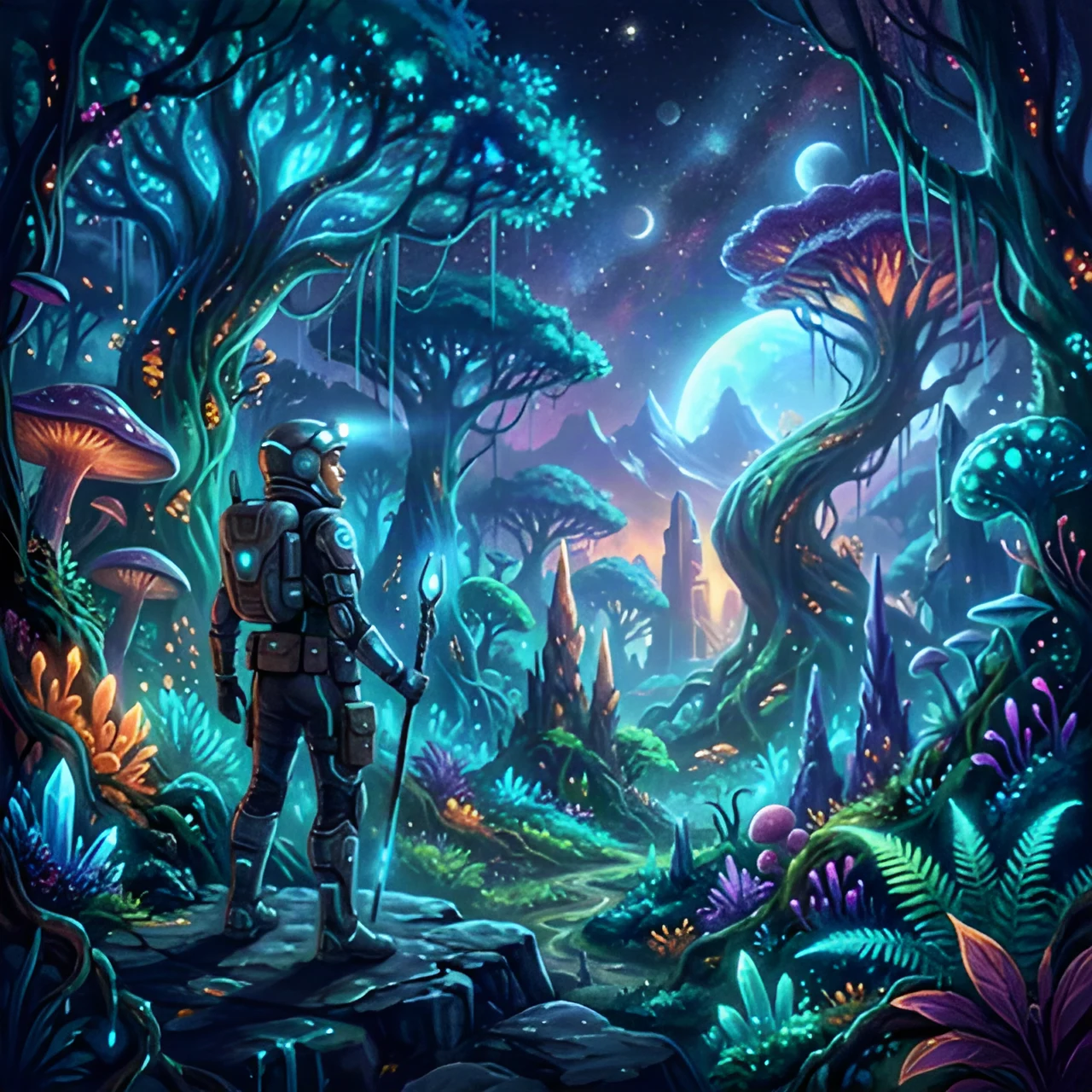
Scale an illustration for a larger composition. Check outlines and small textures before keeping the result.
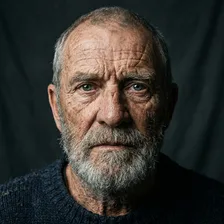
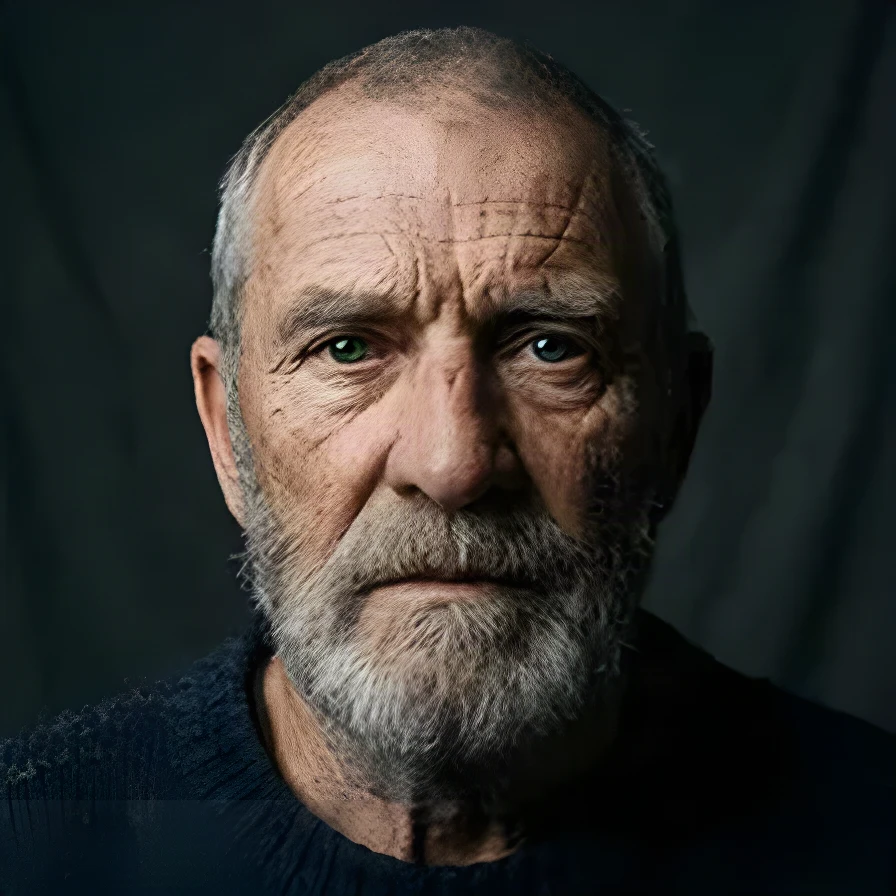
Compare fine facial detail in this actual 4× enlargement. Switch between the complete portrait and the matching crop.
Upload a JPG, PNG or WebP image. Start with the clearest version you have, within the upload limits.
Select 2× or 4×. Check the expected width, height and credit cost before processing.
Preview the result, inspect important details, and download in PNG, JPG or WebP.
Image sizes, free credits and getting the best result.
An AI image upscaler increases an image’s pixel dimensions. Pimg offers 2× and 4× enlargement and uses AI to refine edges and textures as it builds a larger image. The appearance of fine details can change, so preview the result before downloading.
The multiplier applies to both width and height. A 600 × 400 image becomes 1200 × 800 at 2×, or 2400 × 1600 at 4×. That means 4× as many pixels at 2×, and 16× as many pixels at 4×.
It depends on your starting dimensions. The living room shown on this page grows from 1200 × 800 to 4800 × 3200 at 4×, reaching 4K-class dimensions. A 320 × 320 input becomes 1280 × 1280 at 4×. Pimg shows the expected dimensions before you start; 4K is not a separate output preset.
Free credits are available only when you and the selected tool qualify. The workspace shows your available allowance and the credits required before submission. Eligible daily credits reset at midnight in America/New_York. Purchased Credits are available separately.
Upload one JPEG, PNG or WebP image, up to 5 MB and 4 MP. Scaled output is limited to 16 MP; use 2× for larger sources. Choose PNG, JPG or WebP when downloading. The result’s dimensions depend on the original image and your selected 2× or 4× scale.
Upscaling can improve the appearance of soft edges and low-resolution details, but it cannot reliably restore information missing from severe motion blur or defocus. Start with the clearest available source and inspect the result, especially faces and small details.
Not always. AI can smooth or reinterpret fine textures, facial features and small lettering. Check these areas before keeping the result. Upscaling is not a guarantee of exact text reconstruction or an unchanged face.
Failed tasks release their free-credit reservation or refund the paid credits reserved for that task. An unfinished task is not a successful result. You can check its status before trying again.
Upscaling makes the image wider and taller in pixels. Image enhancement improves clarity and detail while keeping the original dimensions. Choose Upscaler when you need a larger image, or Image Enhancer when the current size is already right.