
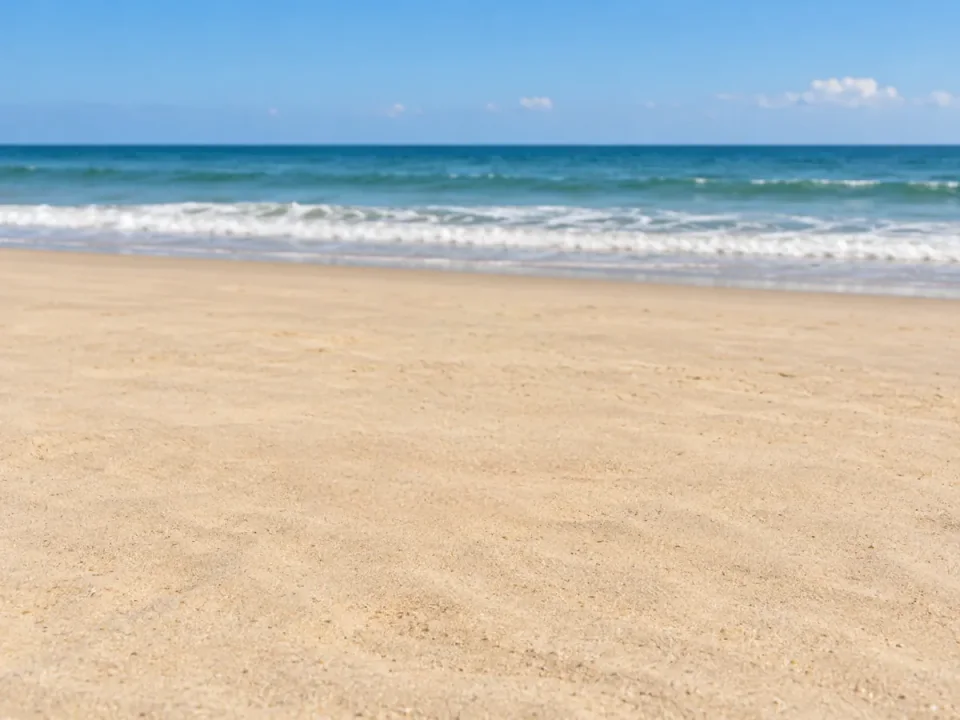
Leave a little more space.
Remove an isolated object from a simple background. Include its contact shadow so the rebuilt sand reads as one continuous surface.

Keep the photo you love. Brush over unwanted objects, people or distractions and let AI fill the selected area.
Upload your photo, then paint over what you want to remove.
Standard: better texture and lighting for larger areas.
Choose PNG, JPG or WebP when you download.
Choose what leaves the frame. The rest of the scene gives AI context for filling the selected area.
Remove an isolated object from a simple background. Include its contact shadow so the rebuilt sand reads as one continuous surface.
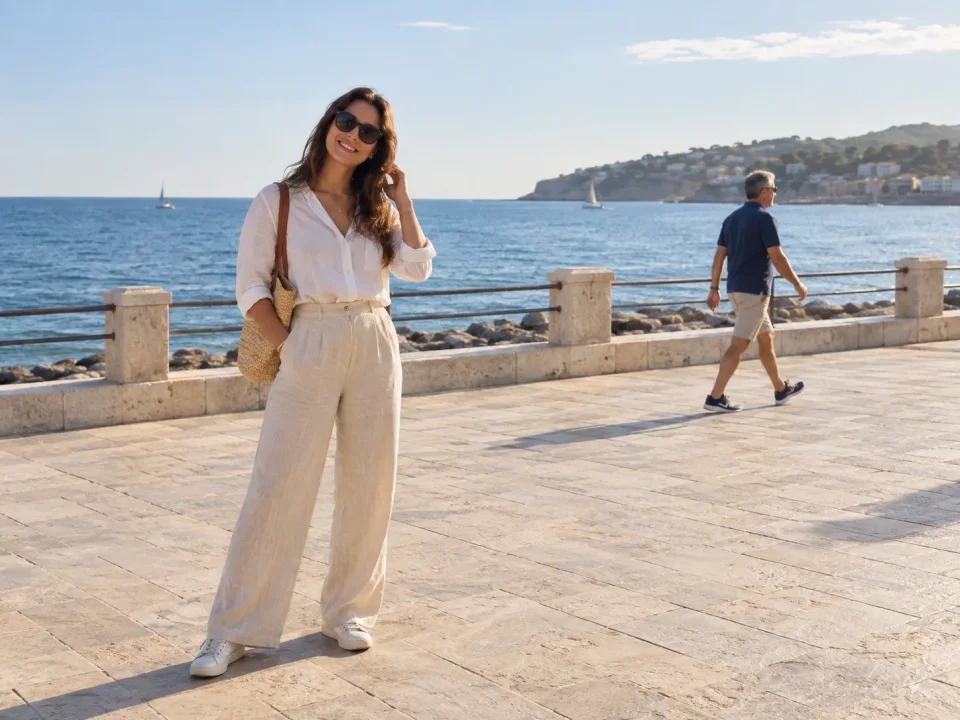
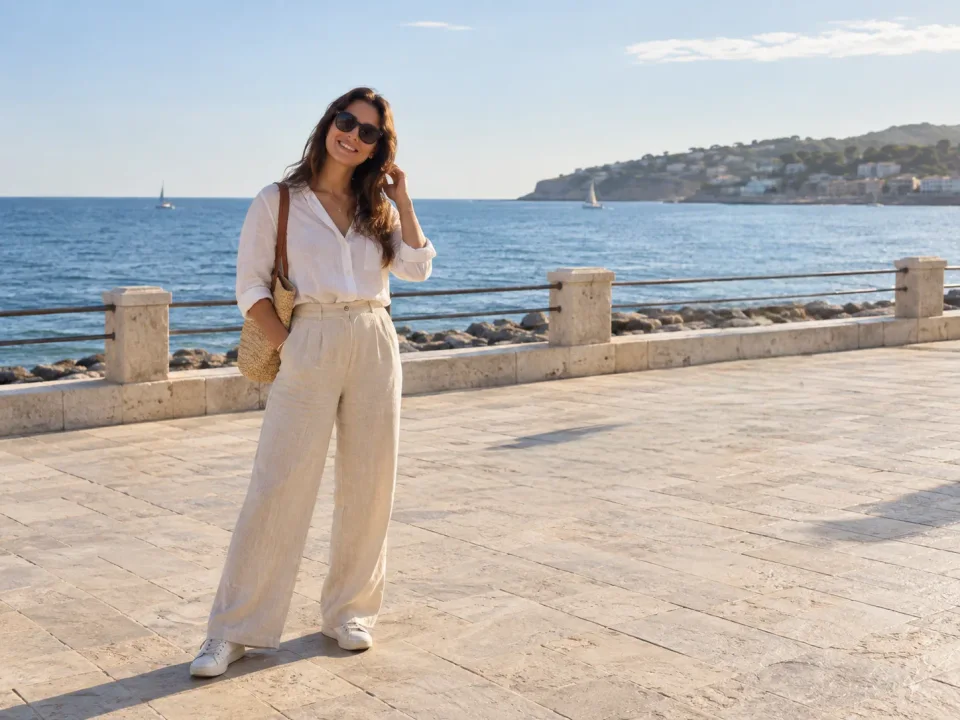
Keep the foreground subject as your focus. Paint over the background person and the shadow they cast on the walkway.

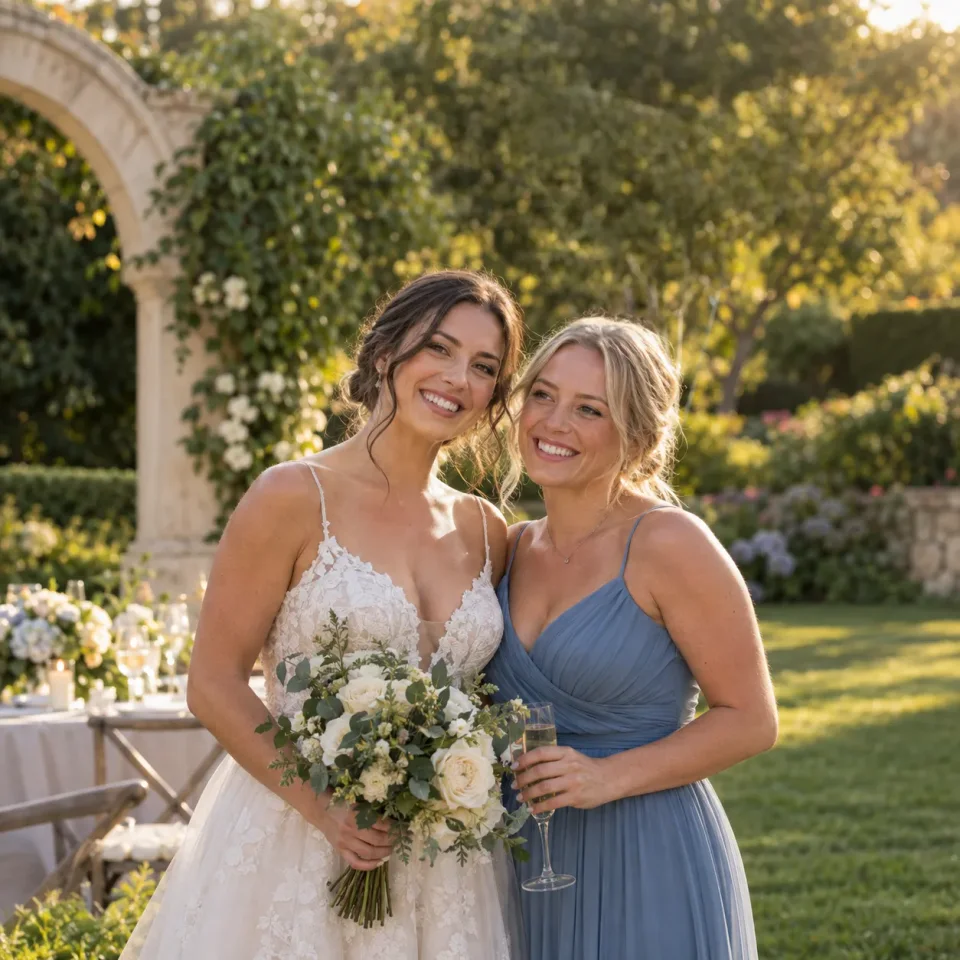
Clear decorations or other distractions from a portrait. Choose a brush size that lets you cover the object without including the people you want to keep.
Example inputs and results.
Choose a JPG, PNG or WebP up to 5 MB and 25 MP. Use the clearest original you have so the area around the object gives a useful starting point.
Paint the full object and any shadow or reflection you want removed. Adjust the brush size or clear the selection if you need to start again.
Choose Remove objects. Credits are checked before submission. Compare the result with your original, then download it as PNG, JPG or WebP.
Selections, results, free credits and files.
An AI object remover fills a selected area in a photo using the surrounding image as context. You paint over an unwanted object, person or distraction; the model generates a plausible continuation of the background.
Upload your photo, adjust the brush size and paint over the full object. Include any shadow or reflection you want gone. Choose Remove objects, review the completed result and download the version you prefer.
You can select an unwanted person or passer-by with the brush. Include their belongings and visible shadow. The model fills the selected area; inspect nearby faces, edges and background details before using the result.
Include a cast shadow or reflection if it belongs to the object you want removed. A selection that covers only the object can leave its shadow behind. Leave enough visible background around the selected area to guide the fill.
Exact pixel preservation is not guaranteed. AI can interpret surrounding details differently, even outside the selected area. Compare important faces, lettering, textures and edges with your original before downloading.
The hidden area is generated from surrounding context; it is not recovered from an unseen original. Large selections, patterned surfaces and fine structures can produce inconsistent details. Use a smaller, well-defined selection when possible.
Free credits are available only when you and the selected tool qualify. The workspace shows your available allowance and the credits required before submission. Eligible daily credits reset at midnight in America/New_York. Purchased Credits are available separately.
Upload one JPG, PNG or WebP up to 5 MB and 25 MP. The brush creates the aligned selection mask for you. Completed images can be downloaded as PNG, JPG or WebP.
Object Remover fills a selected part of the scene so you can keep the photo around it. Background Remover separates the main subject and exports a transparent PNG. Choose the tool that matches what you want to keep.
A technical failure is different from a completed result you do not like. Wait for the task’s final status before submitting again. The generation flow handles failure and credit recovery; a new request uses its own allowance.
Upload your image and choose what you want to remove.